ERPintegrators.comby Solvync Inc.
Stock Shortage Calendar for Odoo
See upcoming stock shortages and assign the follow-up
Give purchasing and inventory teams one place to review shortages across a warehouse and keep the next action with an owner.
Use Odoo's forecast quantities, inspect the source movements and return to My actions, Overdue or Unassigned when the team needs a next step.
Free download for your Odoo version
Install the matching module for Odoo 17, 18, 19 or 20 Community or Enterprise. The module and source are free under LGPL-3. Use hosting that permits custom Python modules.
Odoo 17
Release 17.0.1, Community and Enterprise
Odoo 18
Release 18.0.1, Community and Enterprise
Odoo 19
Release 19.0.1, Community and Enterprise
Odoo 20
Release 20.0.1, Community and Enterprise
Read the step-by-step training guide (PDF). It includes screenshots, recovery steps and a worked shortage example.
Read the installation requirements and release notes before updating an existing installation. Solvync can help with setup and team training.
Start with the whole warehouse
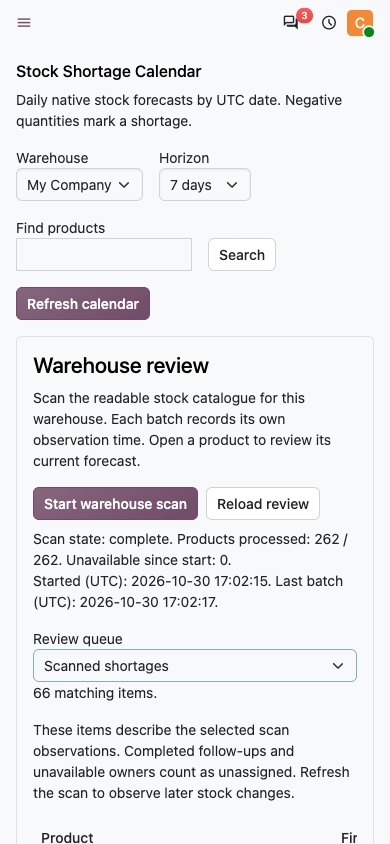
Scan the stock-tracked products you can read, then work through the shortage results in pages. Progress and observation times stay visible while the scan runs. The scheduled worker can continue after you leave the page.
Scan the warehouse
Choose a warehouse and a 7, 14 or 31-day horizon. The scan covers the stock-tracked products you can read, independently of your calendar selection.
Review the current forecast
Open a scan result to see the product's current daily balances, shortage dates and source movements. Batch timestamps show when each scan observation was made.
Assign the follow-up
Choose an Inventory user, set a due date and record the next action. Keep ownership changes and earlier notes in the action history.
Return to your queue
Use My actions for your work, Overdue for missed dates and Unassigned for shortages still needing an owner. Mark the follow-up Done when the work is finished.
Keep the next action with an owner
My actions
Open follow-ups assigned to you, including items whose stock forecast has recovered. Keep the action open until the follow-up is finished.
Overdue
Open and In progress follow-ups whose due date has passed. See the work waiting across the warehouse team.
Unassigned
Shortages from the selected scan that need an eligible owner. A shortage can return here after an action is completed or its owner becomes unavailable.
My actions and Overdue work without a warehouse scan. Unassigned describes the selected scan observations. These queues can overlap.
Check what changed before you contact a supplier
Explain the shortage
Review daily balances, the first shortage date, the worst deficit and the first recovery. Open the readable stock movements behind a date and follow their source documents.
Review changes since your baseline
Save a private review baseline and compare matching UTC dates. See whether the shortage changed and which accessible source movements need another look.
Simulate one receipt's timing
Preview an earlier or later arrival for one eligible supplier receipt. Review the effect on the daily balances before changing the actual receipt through Odoo.
Keep follow-up history
Record an owner, due date, status and internal note. Review earlier revisions when responsibility or the next action changes.
Check your version and hosting fit
- Odoo versions
- 17, 18, 19 and 20, using the matching module
- Editions
- Community and Enterprise
- Required app
- Inventory
- Module series
- 17.0.1, 18.0.1, 19.0.1 and 20.0.1
- Hosting
- Self-hosted Odoo or an appropriate Odoo.sh environment
- Access
- Inventory user access and your existing company, warehouse and product permissions
- Dates and freshness
- UTC dates, batch observation times and a current product review before action
Odoo Online cannot install this custom Python module. Read Odoo's hosting guidance.
For setup and adoption, visit Solvync's Odoo support and training. For a workflow that needs a different design, discuss Odoo customization with Solvync.
Installation questions
Set up your warehouse review
Bring your Odoo version, hosting setup and the stock questions your buyers handle each morning. Solvync can help with installation, configuration and team training.
Discuss installation