Label Layout Studio for Odoo
Design your labels in Odoo and review every print quantity
Choose the fields your warehouse needs, place them on a reusable layout and preview a real Odoo record before printing.
Keep the layout, values and quantity with each saved request. If a label needs another print, record the reason and keep the original request in view.
Build the label your team needs
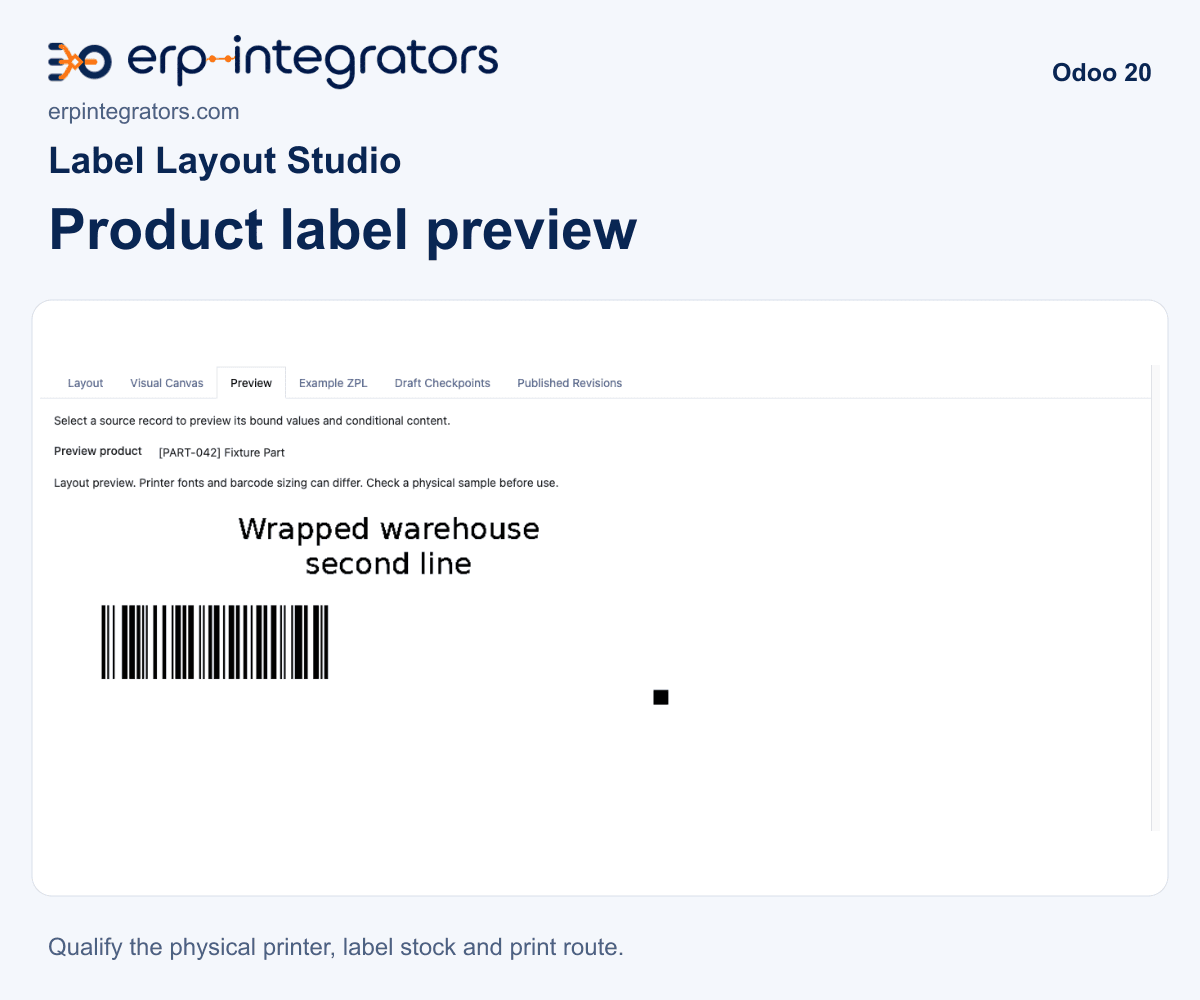
Place text, record fields, barcodes and uploaded logos or images on the canvas. Move and resize elements, set dimensions in millimetres or inches, then preview values from a selected record.
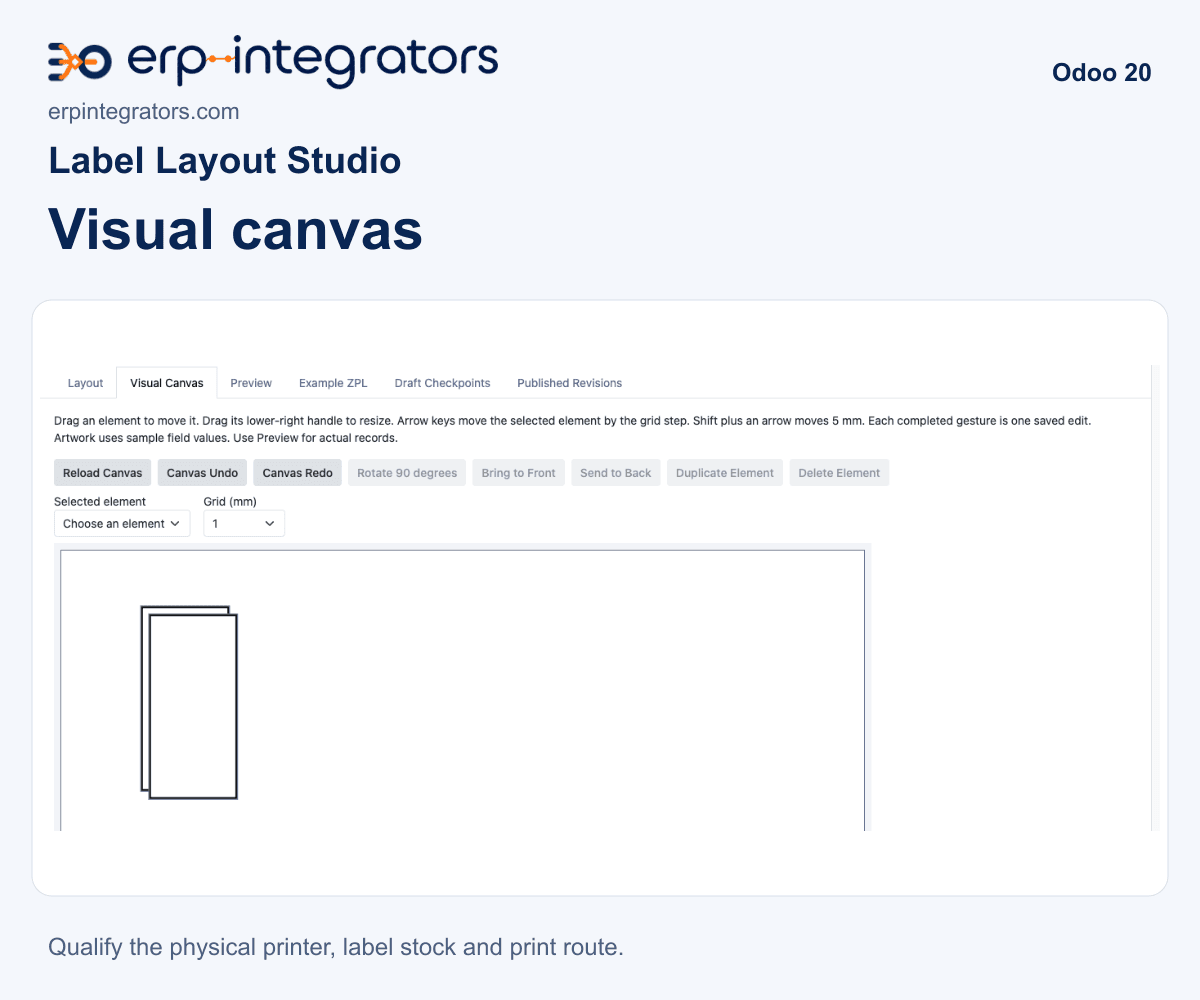
Publish a layout when it is ready for reuse. Static image elements keep an uploaded image with the layout; automatic per-product photos are outside the current release.
Choose a route that fits your printer
Generate an exact-size PDF for your installed printer driver, or ZPL for a compatible label printer. Guided Label Setup helps you select the stock, DPI and profile, then generate a diagnostic label for a physical check.
Native Enterprise IoT uses its normal licence and device configuration. Odoo 20 also supports its native Printer integration with a compatible endpoint and network permissions. An optional PrintNode connection uses your account, local client and applicable service charges.
Check the record count and quantity before printing. A saved file or an accepted queue job does not confirm physical output. Confirm the labels at the printer before repeating a job.
Keep the details behind each label run
Saved requests retain the layout revision, record values, artwork and quantity. The event timeline records generation, downloads and delivery activity. Intentional reprints keep a reason and a link to the original request.
Generate up to 500 labels per request. Split larger runs into named batches and review each batch. PrintNode recovery uses bounded retries with the same job identity and checks provider history when a reply is uncertain.
US$249 on Odoo Apps
Choose the listing that matches your Odoo major version. Community and Enterprise are supported on hosting that permits custom Python addons. Purchase and licence terms are shown on Odoo Apps.
Check your setup before installation
Use Odoo.sh, a server you manage or managed hosting that permits custom Python addons. Standard Odoo Online cannot install this module. Install the package for your Odoo major version with Inventory and GS1 nomenclature; Odoo 20 also requires the native Printer module.
PDF reports use the server's wkhtmltopdf installation. Match the printer profile, label stock and printhead resolution, and print at actual size. Printer commissioning and custom layout recreation can be scoped separately.
For app support, use your Odoo Apps purchase or email info@erpintegrators.com. Include your Odoo version, printer model, DPI, label dimensions and connection route. Review any Support Summary before sharing it.
Published by erpintegrators (Solvync Inc.). Solvync provides Odoo implementation and support services.
Need help with your labels and printer?
Tell us your Odoo version, printer model, DPI and label dimensions. Solvync can scope installation, label configuration and printer commissioning with you.
Discuss your Odoo setup